Videos
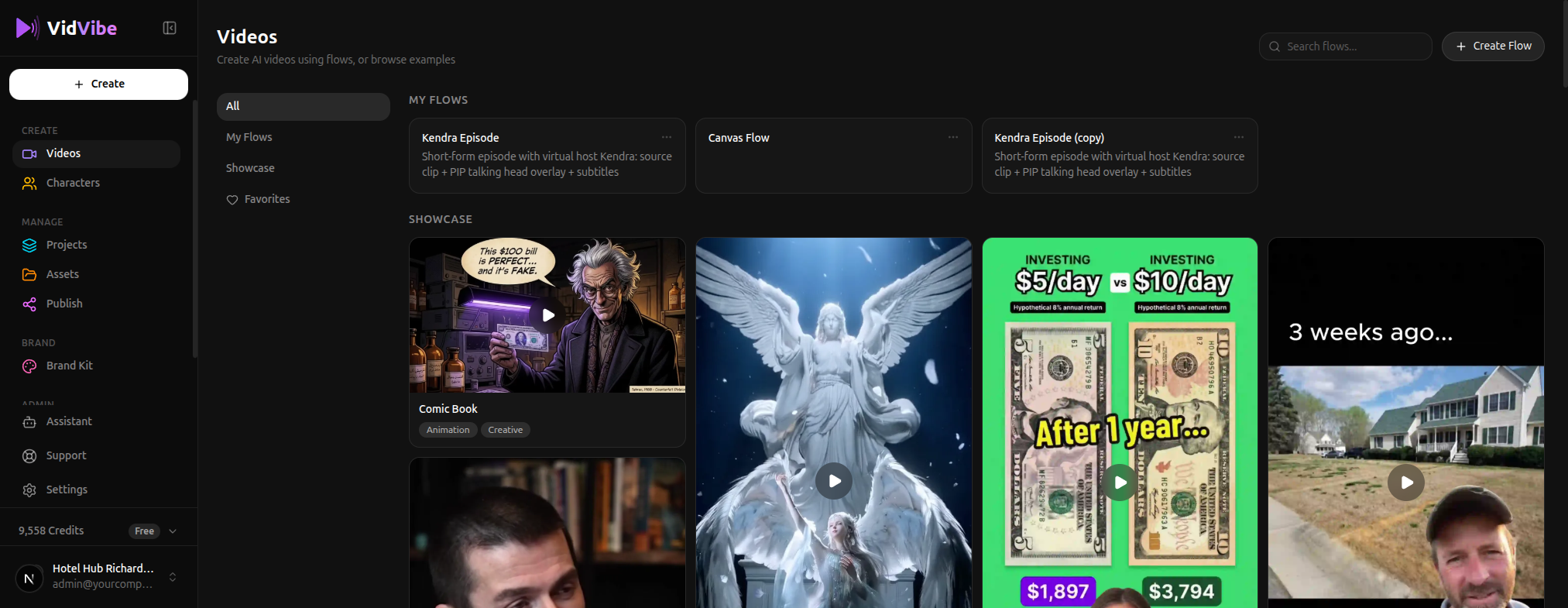
The Videos page is where you create AI videos using flows, and browse example videos from the showcase. This is your starting point for video generation -- not file uploads (those happen on the Assets page).
Page Layout
The page has three tabs on the left side:
| Tab | What It Shows |
|---|---|
| All | Everything -- your flows and showcase videos combined |
| My Flows | Only the flow templates you have access to |
| Showcase | Example videos created with VidVibe to inspire you |
| Favorites | Videos and flows you have saved as favorites |
My Flows
Flows are reusable video creation pipelines. Each flow card shows:
- The flow name (e.g., "Kendra Episode", "Canvas Flow")
- A description of what the flow produces
- A menu (three dots) for additional actions
To create a video from a flow:
- Click on any flow card.
- Fill in the required inputs (topic, character, text, etc.).
- Click Execute to start generating.
- Wait for the pipeline to process -- you can monitor progress in real time.
- Review the result and save or publish it.
Showcase
The Showcase section displays example videos produced with VidVibe. These are organized in a masonry grid -- hover over any video to see a preview. Click to open it in a lightbox with full playback controls.
Showcase videos often come with a Launch Flow button, which lets you create your own version using the same flow template and settings.
Creating a New Flow
Click the + Create Flow button in the top-right corner to build a custom flow from scratch. This takes you to the flow builder where you can design your own video pipeline with drag-and-drop nodes.
You can also search for specific flows using the Search flows... bar.