Images
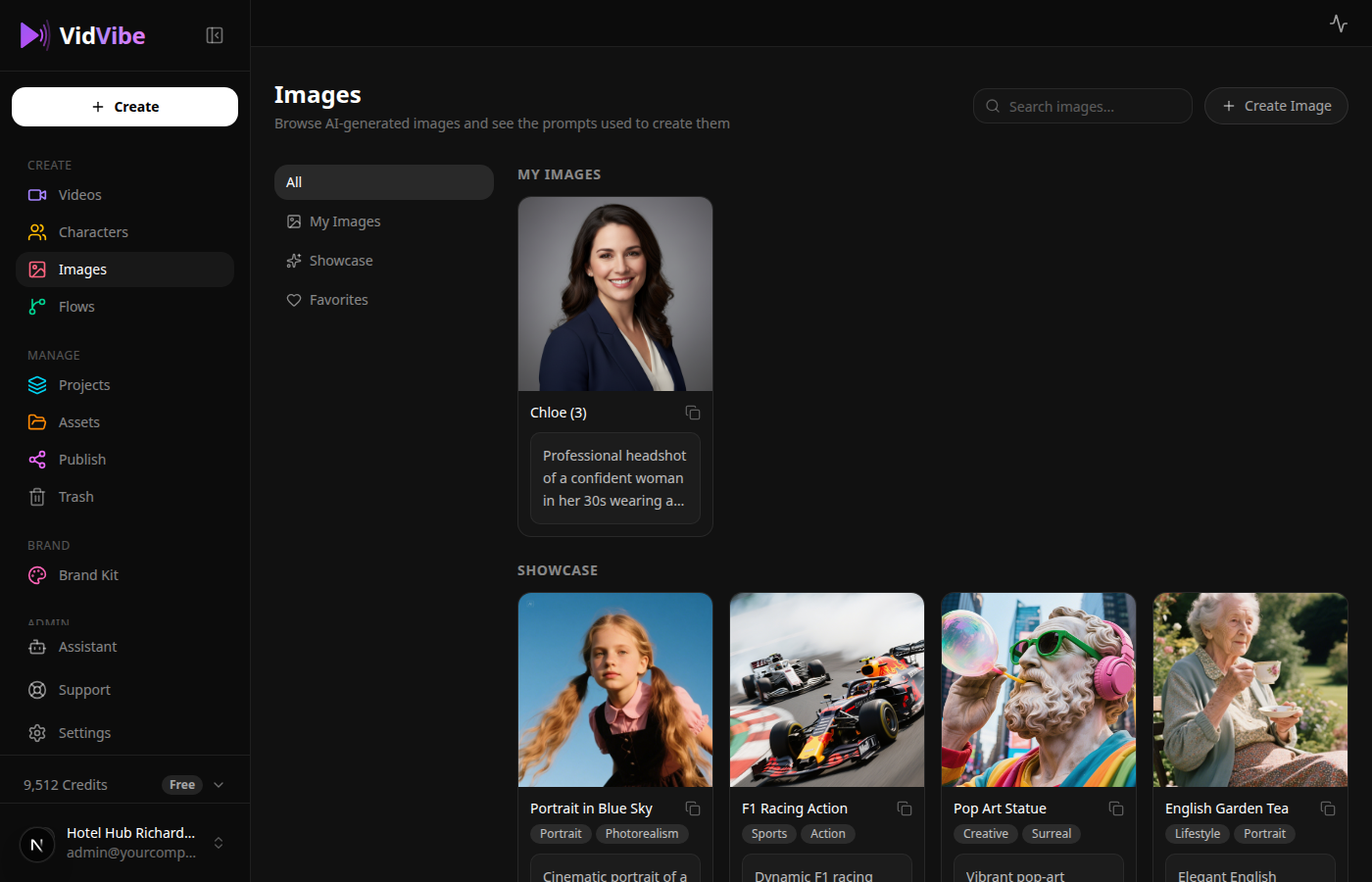
The Images page is your library of AI-generated stills. Useful for thumbnails, ad creative, social posts, or as reference images for video generation.
Page Layout
Sidebar tabs filter the grid:
| Tab | What it shows |
|---|---|
| All | Your saved images + the showcase combined |
| My Images | Images you generated and saved |
| Showcase | Curated example images from VidVibe |
| Favorites | Showcase images you've hearted |
Top-right header:
- Search images... — filter by name or prompt.
- + Create Image — opens the dedicated create page at
/images/new(see below).
My Images
Each card shows the image thumbnail, name, and the prompt that was used. Click a card to open it in the same full-view lightbox used across the app — large frameless image, prompt with Copy button below, ←/→ keys to step through, Esc to close.
The kebab (⋯) menu has Download and Delete actions. Deleting an image only removes it from your library; the original flow run is untouched.
Creating an Image
Click + Create Image to open /images/new.
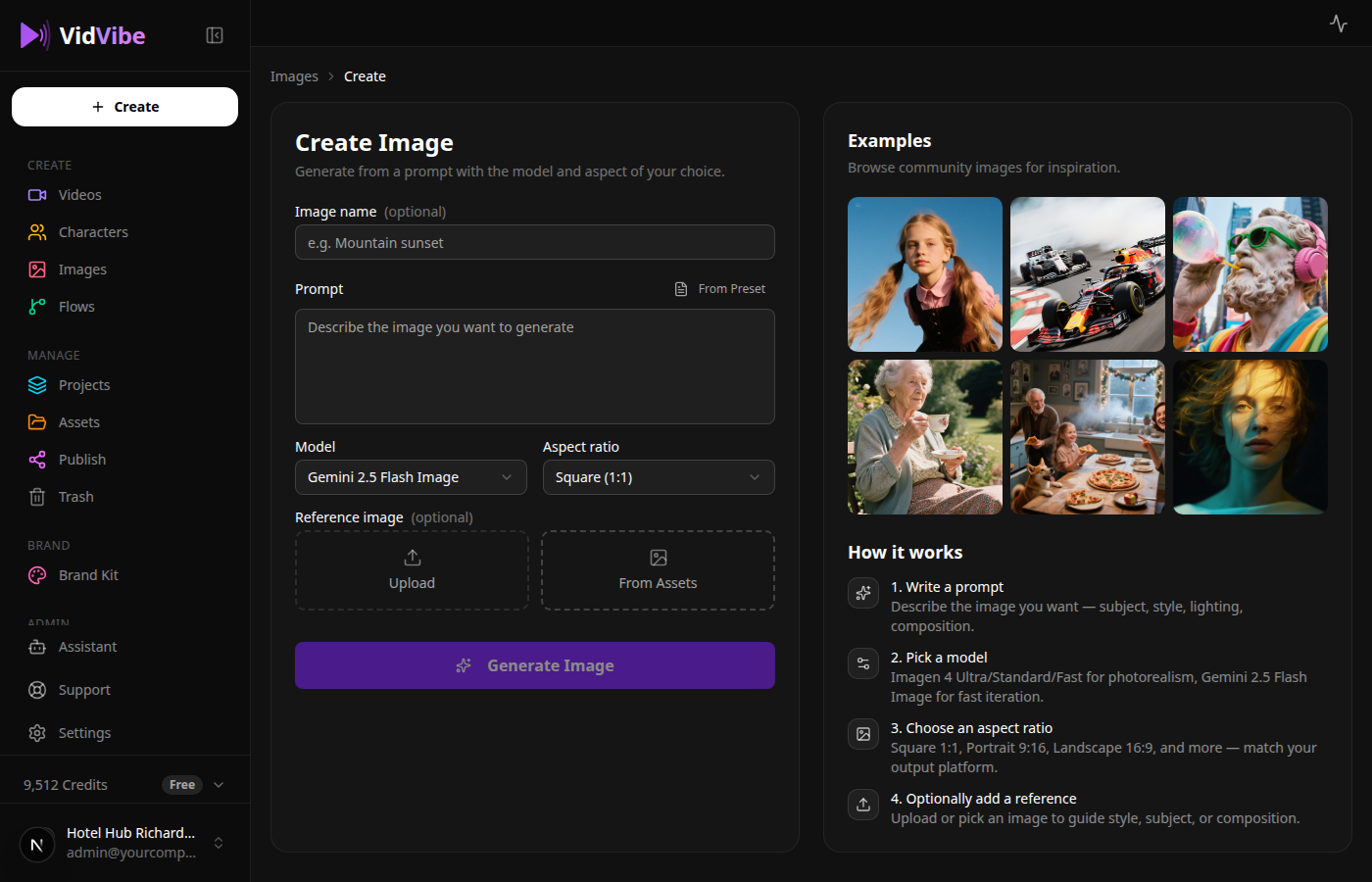
The breadcrumb at the top — Images > Create — links back to the library.
Form fields
| Field | What it does |
|---|---|
| Image name (optional) | A label that shows up in your library. |
| Prompt | Describe the image — subject, style, lighting, composition. From Preset loads a saved prompt. |
| Model | Gemini 2.5 Flash Image / Imagen 4 / Imagen 4 Ultra / Imagen 4 Fast. |
| Aspect ratio | Square (1:1) / Portrait (9:16) / Landscape (16:9) / Standard (4:3) / Vertical (3:4). |
| Reference image (optional) | Pick from your Assets or Upload a fresh file. When provided, models do an edit of the reference rather than a fresh generation. |
Click Generate Image to start. The right column shows examples while you wait, then swaps to the result.
Result panel
When the run finishes, the right column shows the generated image with three buttons:
- Save Image — adds the image to My Images.
- Discard — deletes the draft.
- Generate another — clears the panel so you can run again with the same form values.
Until you click Save, the image is a draft — it doesn't appear in My Images yet.
Showcase
The showcase grid renders example images as a masonry layout — click any card to open the lightbox. The detail panel shows the prompt with a Copy button and tag pills. The fastest way to build a variation: copy the prompt, open + Create Image, paste, and tweak.
The heart icon toggles Favorites.
Where the Underlying Flow Lives
Image creation is a real flow under the hood — inputs → imageNode. You can browse, fork, or open the canvas for it from Flows.