Projects
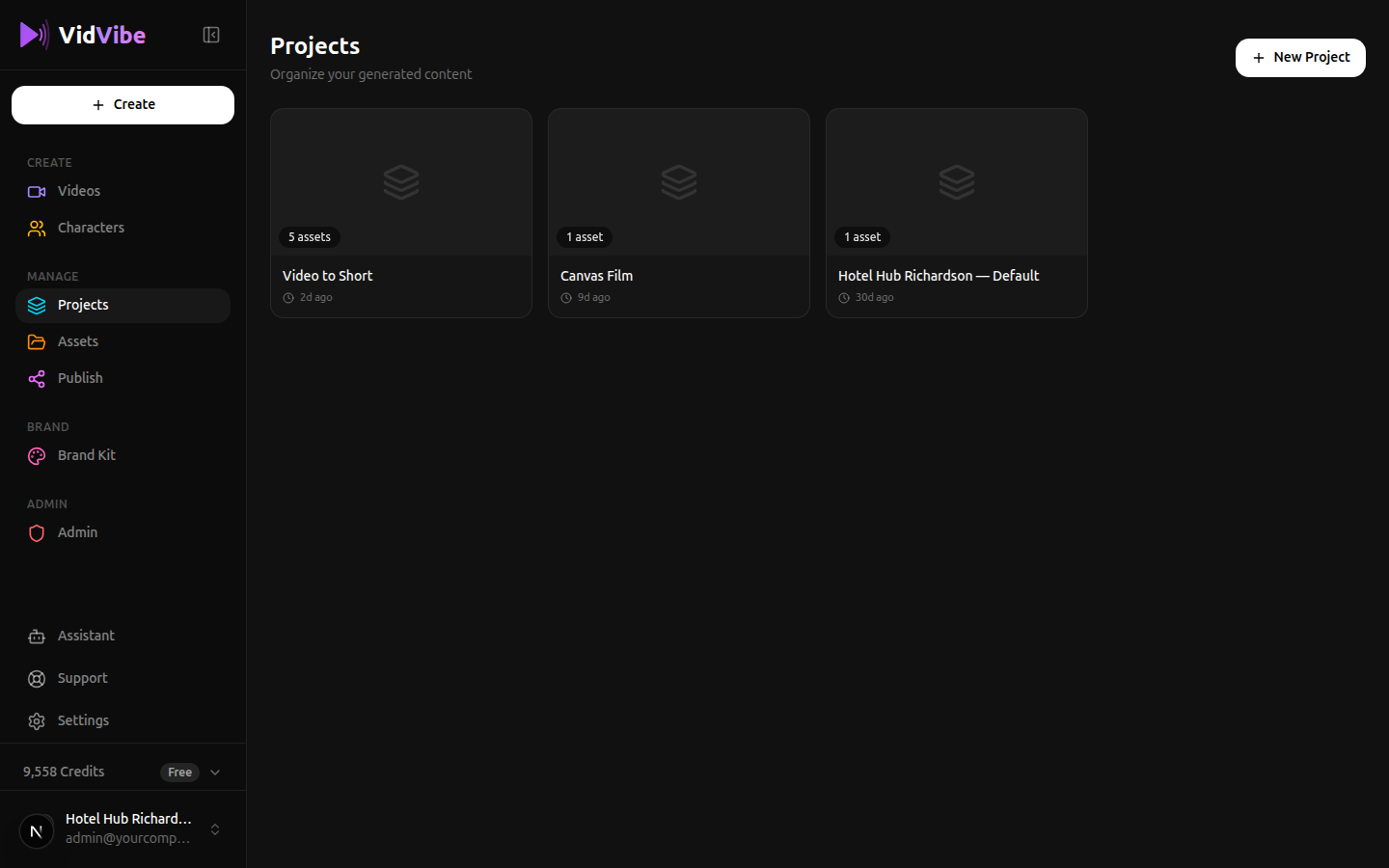
Projects let you organize your work into folders. Each project group contains related creatives and uploads, making it easy to manage content across multiple brands or campaigns.
What's in a Project
Each project card shows:
- The project name
- The number of assets it contains
- A timestamp showing when it was last updated
Click any project card to open it and see all its assets.
Inside a Project
When you open a project, you see all the assets that belong to it -- videos, images, and other files displayed in a grid. The toolbar at the top mirrors the Assets page toolbar, so you can do everything from inside a project without bouncing back out:
- Preview any asset by clicking on it.
- Search and Filter assets within the project.
- Upload new files directly into the project.
- + Create from Flow to generate a new video into this project (see below).
- + New Character to add a character that gets attached to this project's brand context.
- + New Preset to save a prompt preset.
- Use the Back button in the top-left to return to the project list.
Creating a Video from a Flow inside a Project
For simplicity, you can run a flow without leaving the project -- the result lands directly inside it.
-
Click + Create from Flow in the toolbar at the top of the project page.
-
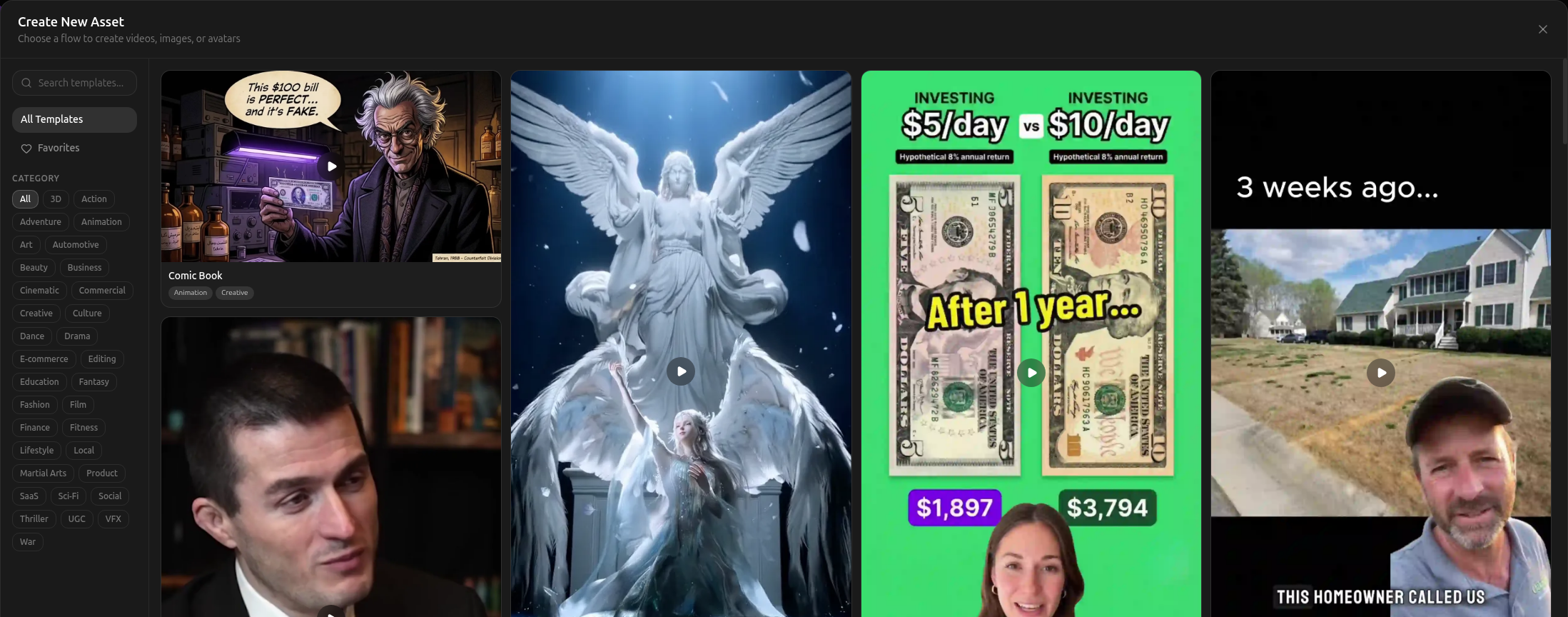
The Create New Asset flow picker opens. Browse or filter the catalog and click Use Flow on the card you want.
-
The flow's launch dialog opens next -- fill in its inputs and run it the same way as elsewhere. See Running a Flow for the three run modes (manual approval / YOLO / Advanced canvas).
When the flow finishes, the resulting video shows up in this project's grid automatically -- no need to move it manually.
Flows that show Coming Soon on their card don't have a ready pipeline yet -- clicking them opens the Notify Me dialog instead. See Flows that are not ready yet for more.
Creating a Project
Click + New Project in the top-right corner to open the Create Project dialog.
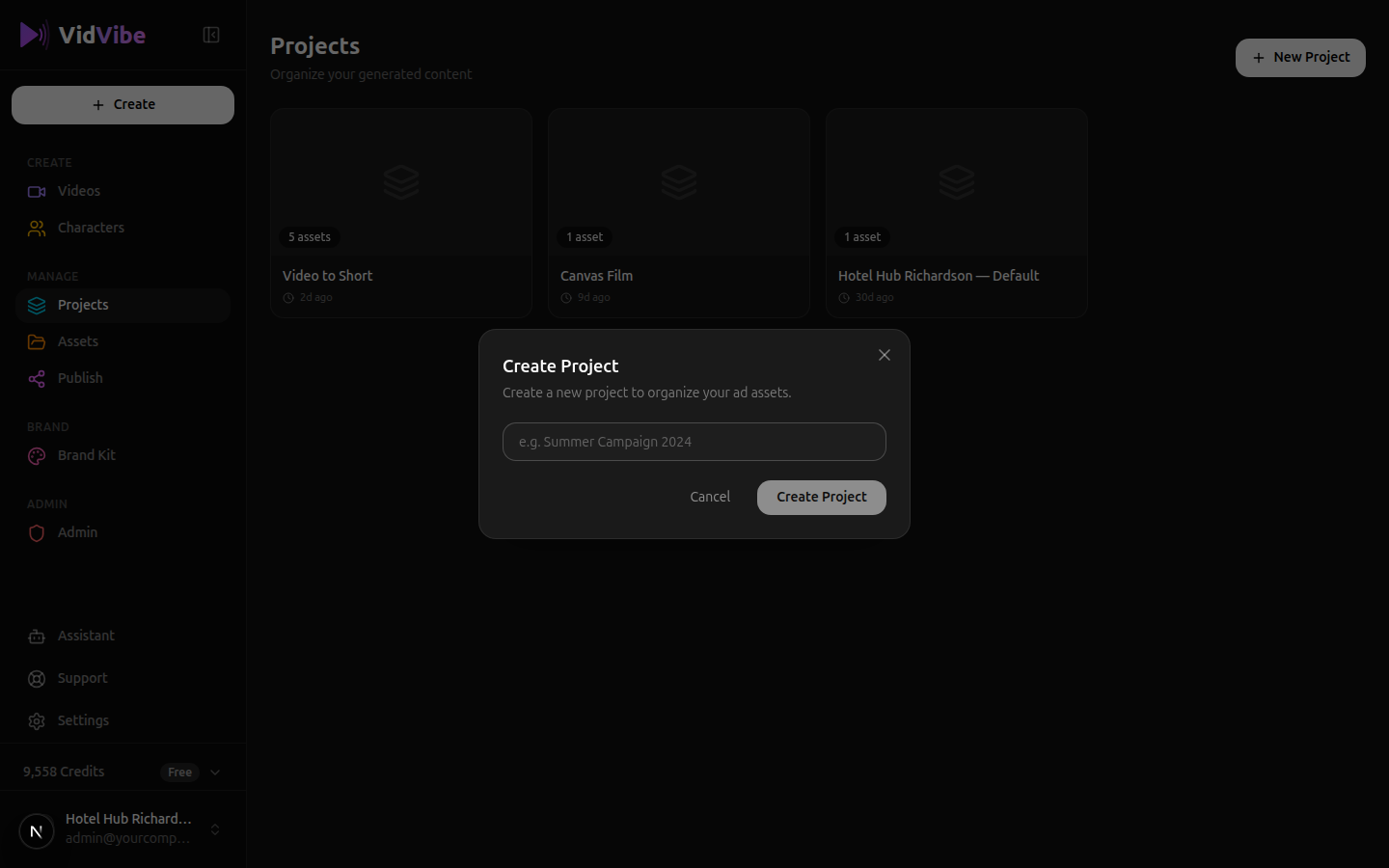
Enter a name for your project (e.g., "Summer Campaign 2024") and click Create Project. The new project will appear in your project list, ready for you to add assets to it.
Projects are also created automatically when you save flow results to assets -- VidVibe groups them into a project named after the flow.
Managing a Project
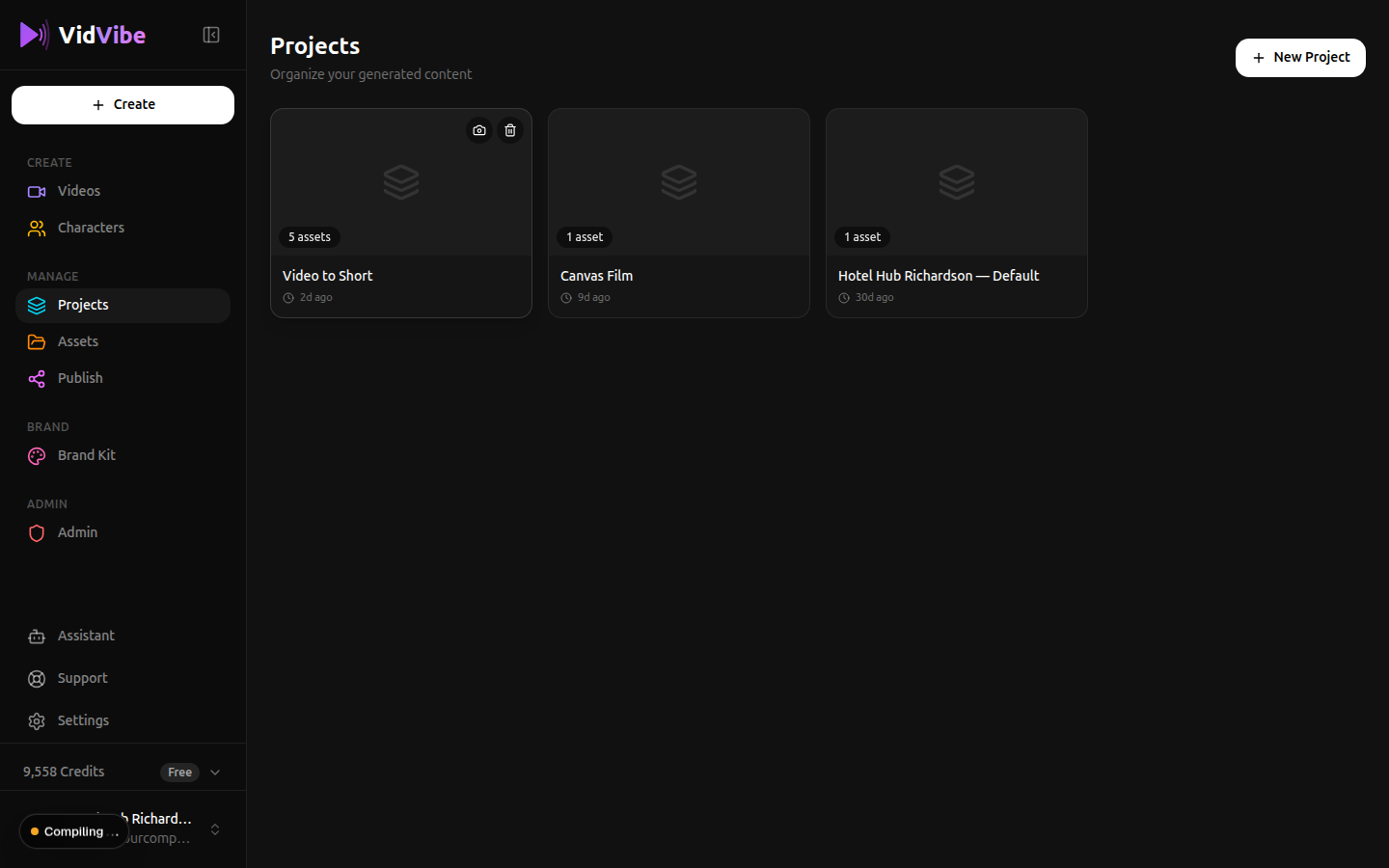
Hover over a project card and click the ⋯ button in the top-right corner to open the project menu:
- Rename — opens a dialog where you can edit the project name. Press Save (or Enter) to apply, Cancel (or Escape) to discard.
- Set photo — opens a file picker so you can upload an image to use as the project's cover. The image replaces the default folder icon on the card.
- Delete — removes the project folder. The assets inside remain in your library and become ungrouped.
Moving Assets In and Out of Projects
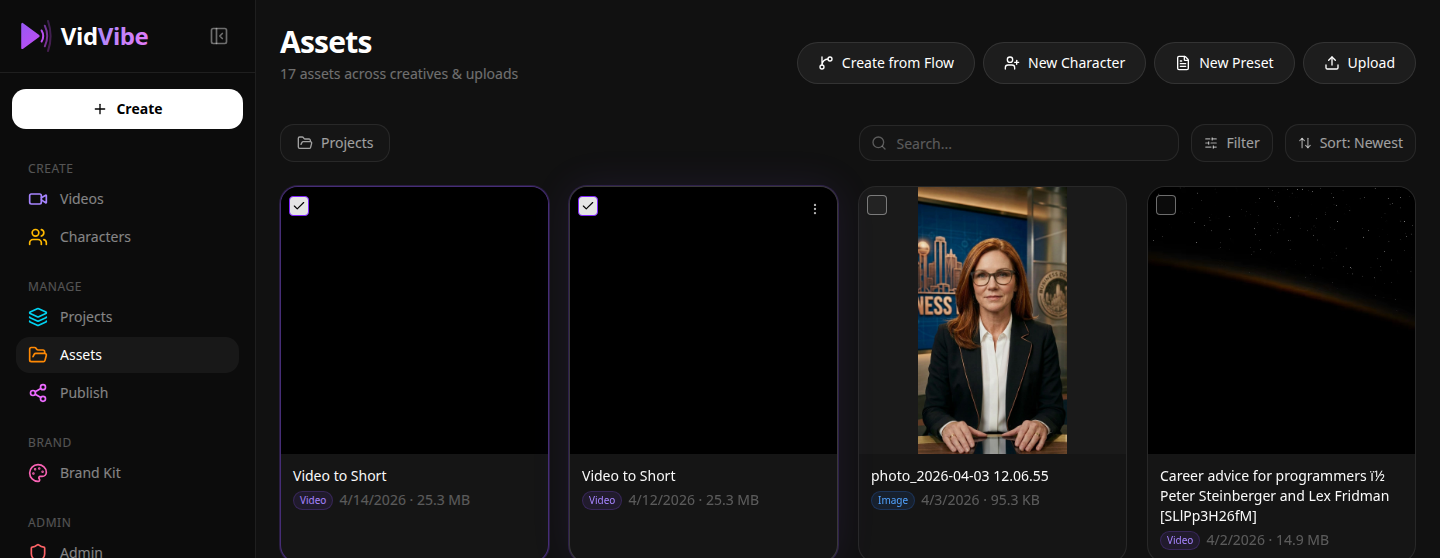
You move assets between projects from the Assets page and from any project's detail page using the same bulk-selection toolbar.
Selecting assets in bulk
Hover over an asset card and click the checkbox in the top-left corner. Once at least one asset is selected, every card shows its checkbox so you can keep adding to the selection. A floating action bar appears at the bottom of the screen showing the count, the available bulk actions, and an × button to clear the selection.
Adding assets to a project
From the Assets page, select the assets you want to group, then click Add to Project in the action bar.
A dialog opens listing all your projects. Pick the destination project and click Add.
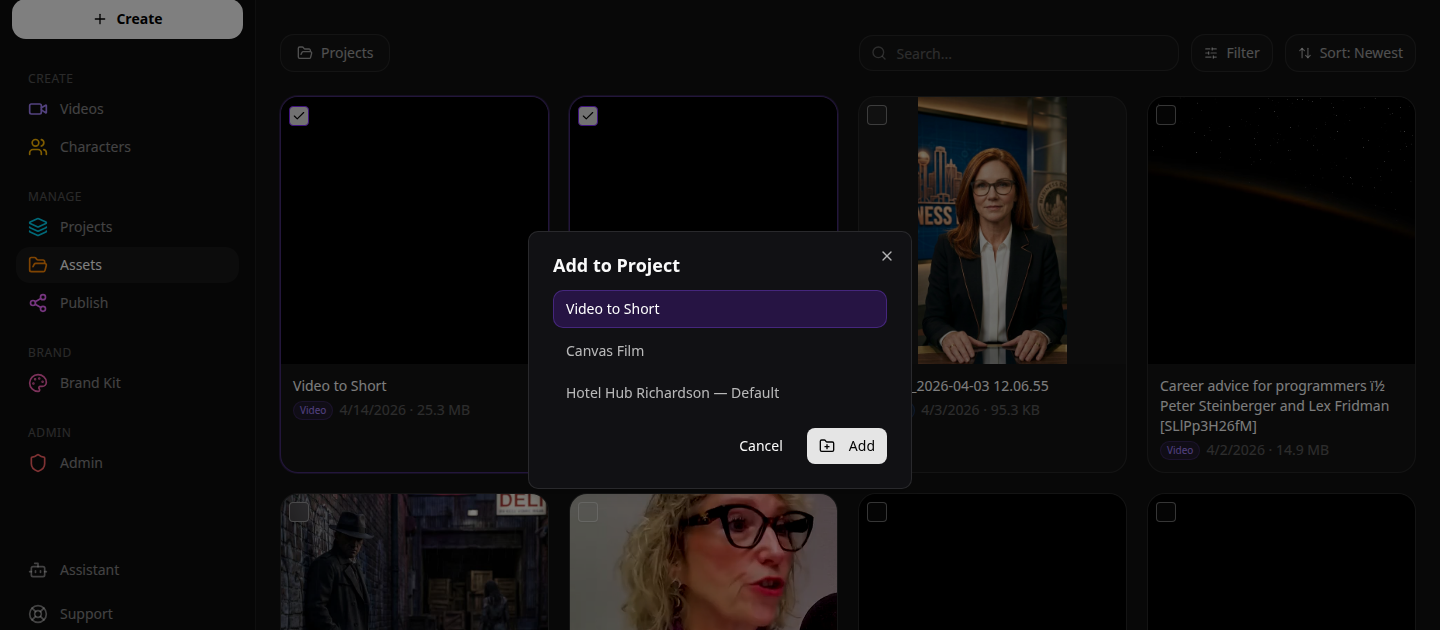
The selected assets are linked to that project. They still appear in your full Assets library, and they now also appear inside the project.
Removing assets from a project
Open the project, select the assets you want to remove, and click Remove from Project in the action bar.
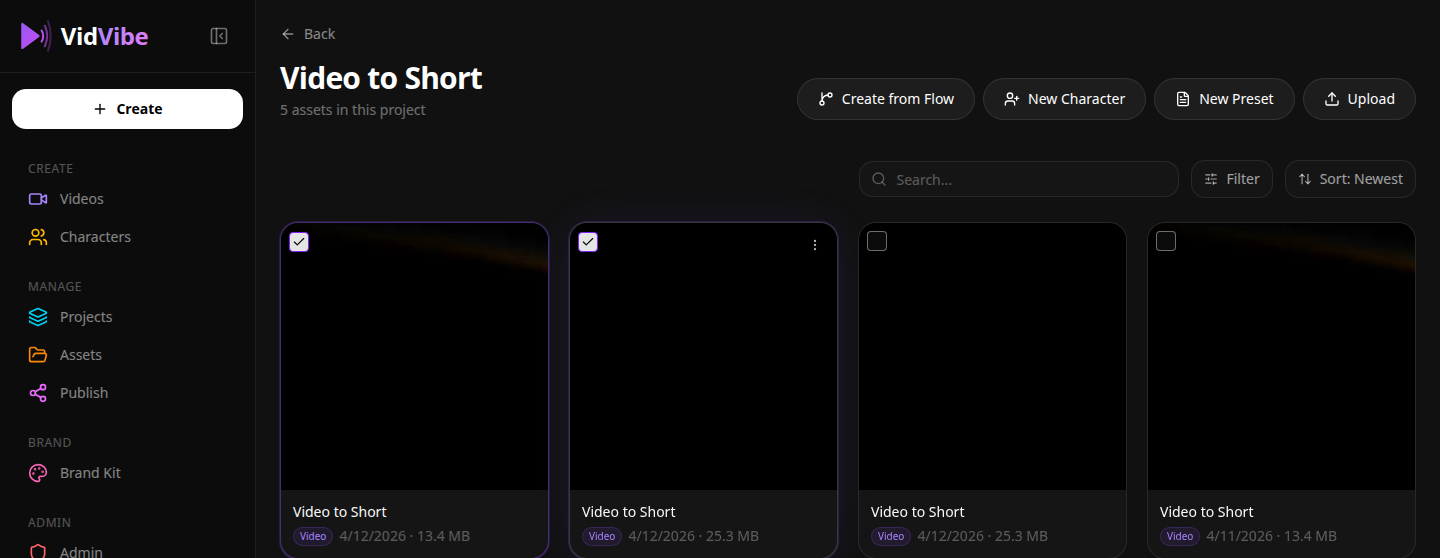
The assets are unlinked from the project but stay in your library — only the project association is removed. To move them to a different project, go back to the Assets page and use Add to Project.
The action bar's Delete button (in red) permanently removes the selected assets from your library, regardless of which page you're on. Removing from a project does not delete the asset.