Videos
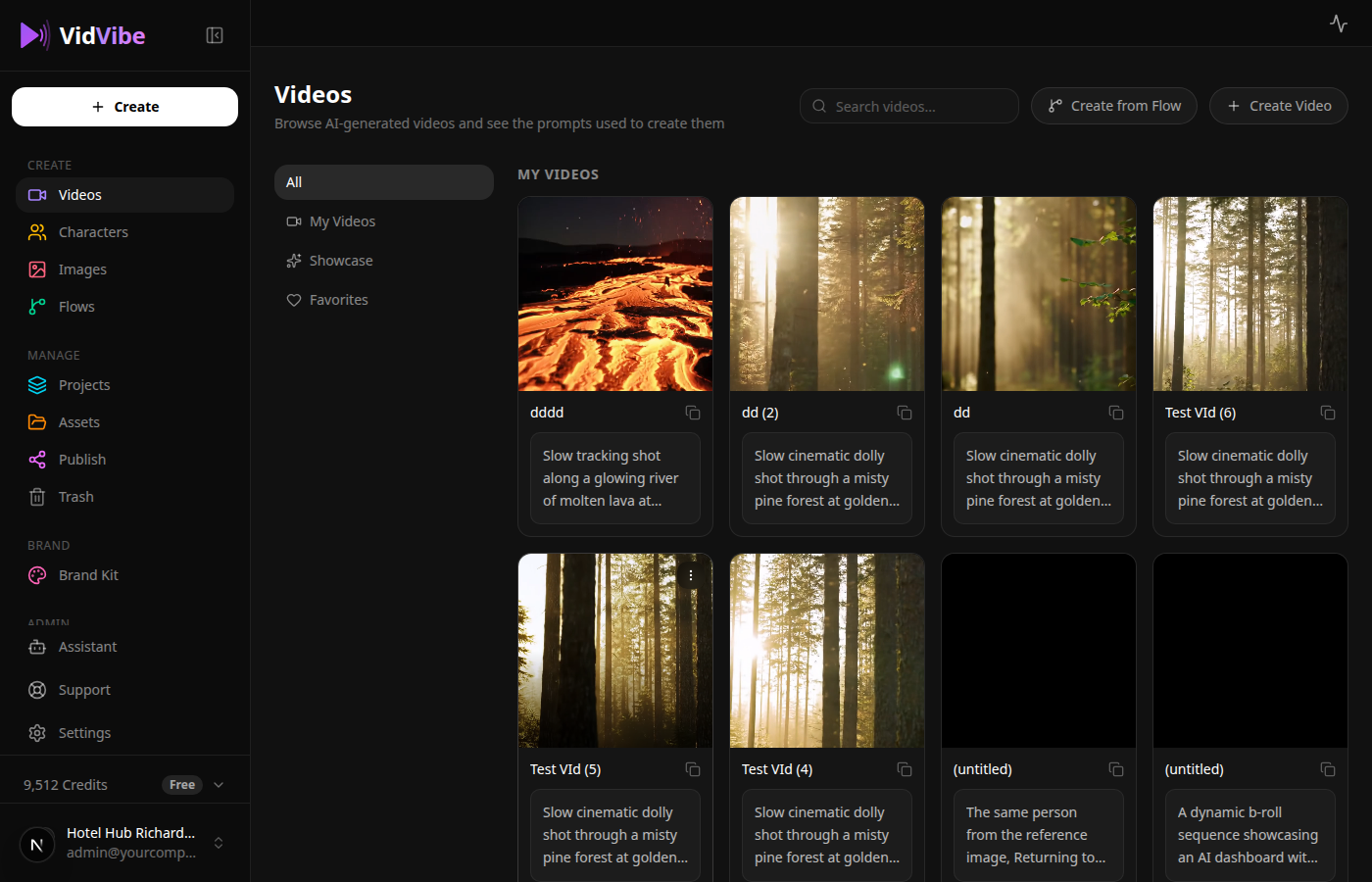
The Videos page is your video library — every AI-generated video you save lives here. It also has a community Showcase to inspire your next creation. To launch a flow that produces video, jump to Flows.
Page Layout
The page has four tabs in the sidebar that filter what you see in the grid:
| Tab | What it shows |
|---|---|
| All | Everything — your saved videos and the community showcase combined |
| My Videos | Videos you generated and saved (from /videos/new or from a flow run) |
| Showcase | Example videos curated by VidVibe |
| Favorites | Showcase videos you have hearted |
The page header has two CTAs in the top-right:
- Create from Flow — opens the full-screen flow picker (see Flows).
- Create Video — opens the dedicated single-shot create page at
/videos/new(see below).
My Videos
Each card shows a thumbnail (hover to play), the video's title, and the prompt used to create it. Click a card to open the video in a full-view modal:
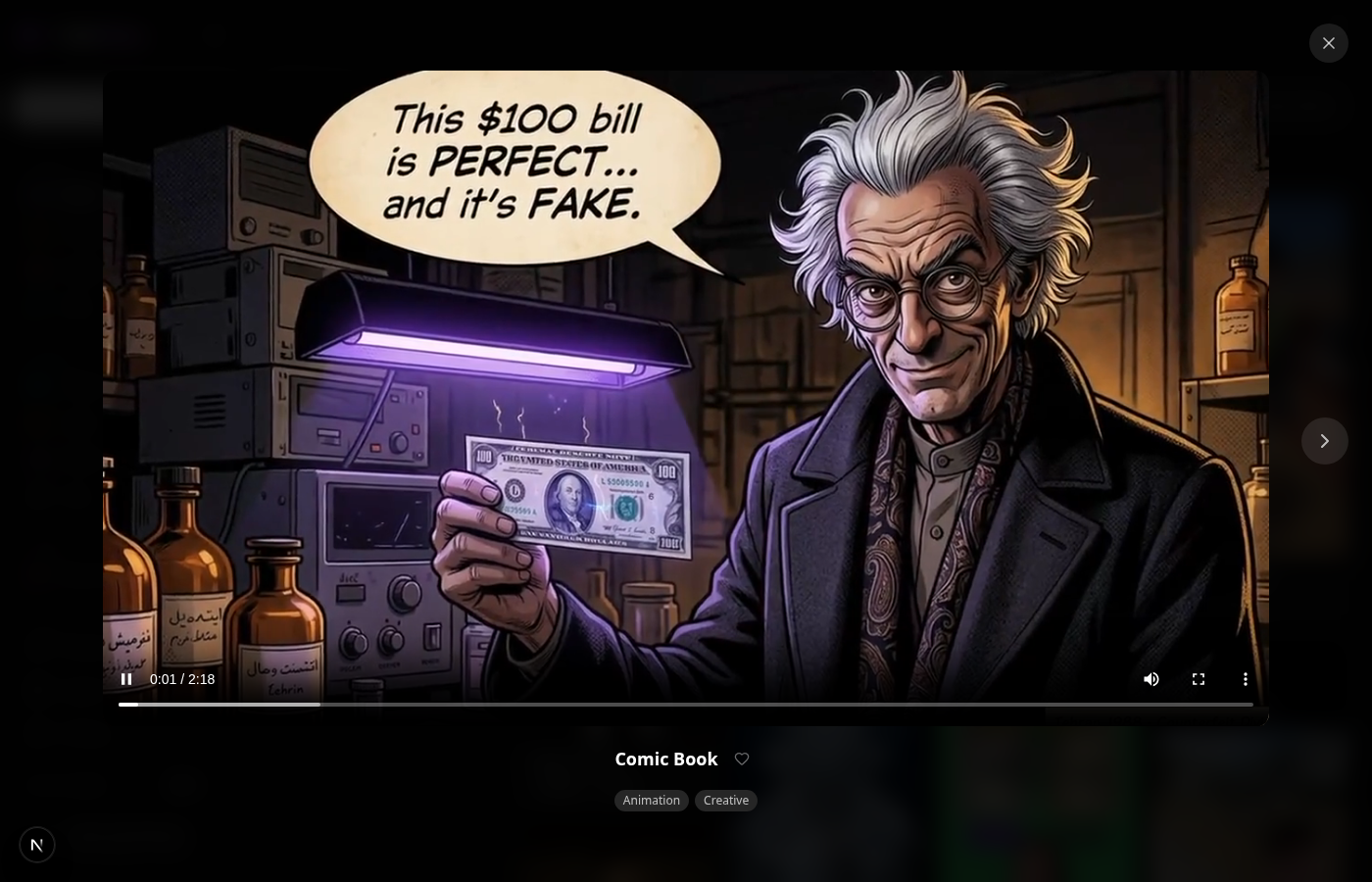
The lightbox shows the playable video with title and meta (model, duration, resolution) at the top, the full prompt below with a Copy button, and Download / Close in the corner. Use ←/→ keys or the chevrons to step through nearby videos.
The kebab (⋯) menu on each card has Download and Delete actions. Deleting a video removes it from the library — the source flow run remains.
Where new entries come from
Two paths land a video in My Videos:
- Direct creation at
/videos/new(see below) — saves immediately on click of Save Video in the result panel. - Flow run completion — when a flow that produces a video finishes on
/flows/review/<id>, VidVibe automatically saves the result here so you don't have to.
Creating a Video
Click Create Video in the page header to open /videos/new — a split-screen create form.
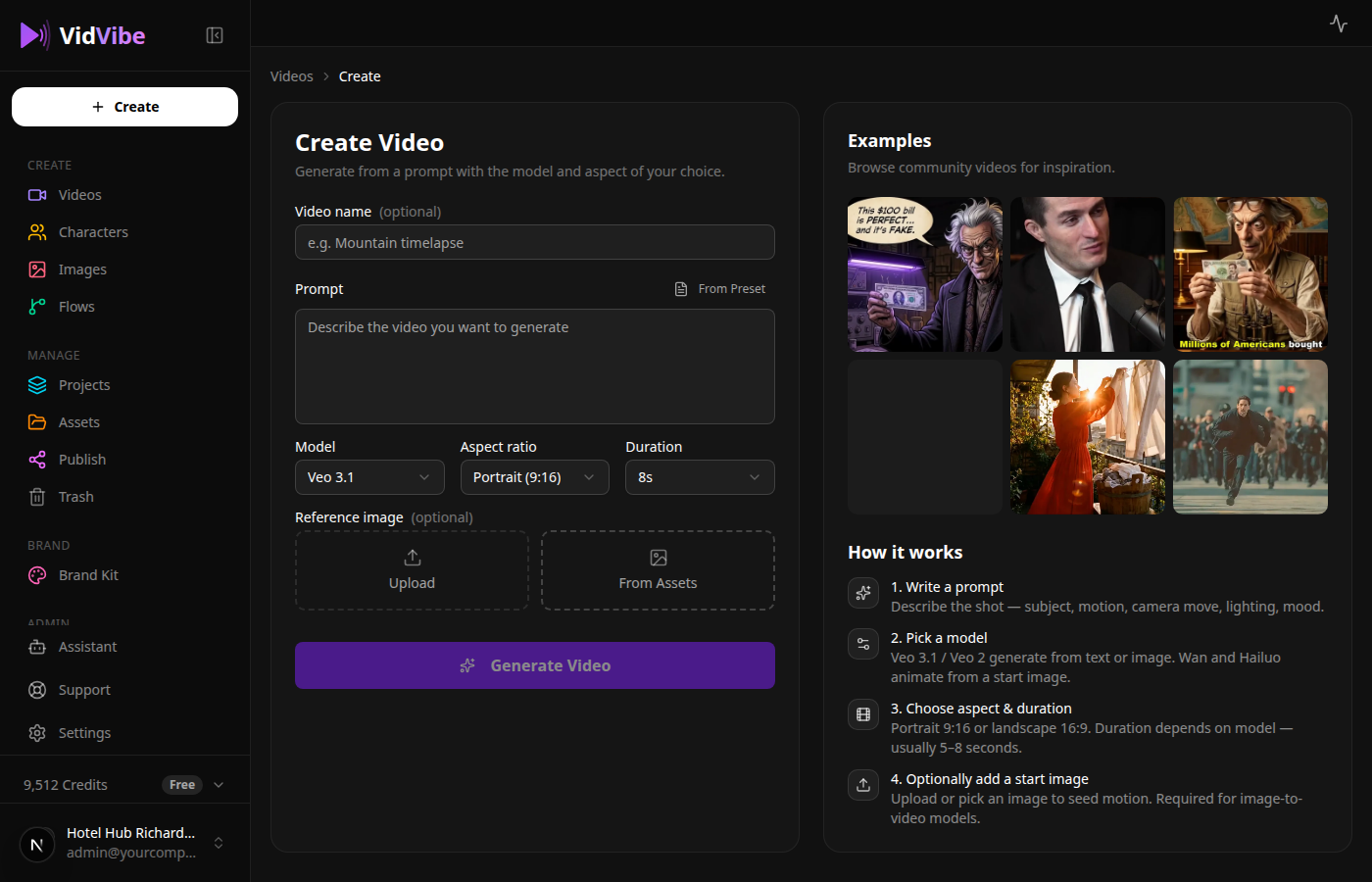
The breadcrumb at the top — Videos > Create — links back to the library.
Form fields
| Field | What it does |
|---|---|
| Video name (optional) | A label that shows up in your library. Auto-generated if you leave it blank. |
| Prompt | Describe the shot — subject, motion, camera, lighting, mood. From Preset loads a saved prompt. |
| Model | Veo 3.1 / Veo 3.1 Fast / Veo 2 / Wan 2.2 (image-to-video) / Hailuo 2.3 (image-to-video). The form gates aspect / duration options per model. |
| Aspect ratio | Portrait (9:16) or Landscape (16:9). |
| Duration | Allowed values depend on model — usually 5s / 8s for Veo, fixed for Wan / Hailuo. |
| Reference image (optional / required) | Optional for Veo (text-to-video accepts an optional start frame). Required for Wan / Hailuo (image-to-video). Pick from your Assets or Upload a fresh file. |
Click Generate Video to start. The right column shows a spinner while the run executes, then swaps to the result panel.
Result panel
When the run finishes, the right column shows your generated video with three buttons:
- Save Video — adds the video to My Videos.
- Discard — deletes the draft.
- Generate another — clears the panel so you can start a new run with the same form values.
Until you click Save, the video is a draft — it does not appear in My Videos yet. If you close the tab without choosing, the draft stays on the server and you can resurrect it via the flow review page (it links to the run id).
Showcase
The showcase grid renders example videos as a masonry layout — hover to play, click any card to open it in the same full-view lightbox as your own videos. The lightbox shows the prompt that was used (with Copy button) and tag pills.
The heart icon in the top-right of each card toggles Favorites.
Reusing a showcase prompt
The fastest way to build a variation: open the showcase video, click Copy on the prompt, then Create Video in the header, and paste it into the Prompt field. Tweak before you generate.
Tracking flow runs
If you launched a flow that produces video (via Create from Flow on this page), the run lives on the Flows review page. Once the run completes, the result auto-saves to My Videos here.